Interface overview
The interface might slightly differ in appearance on different web browsers, due to different ways of rendering the structure of the page.
Branding
The system might be additionally personalized based on your branding needs, therefore screens presented in this document might differ in colour, appearance and branding from the system you are currently using. The structure and general interface of a personalized system remain intact.
General
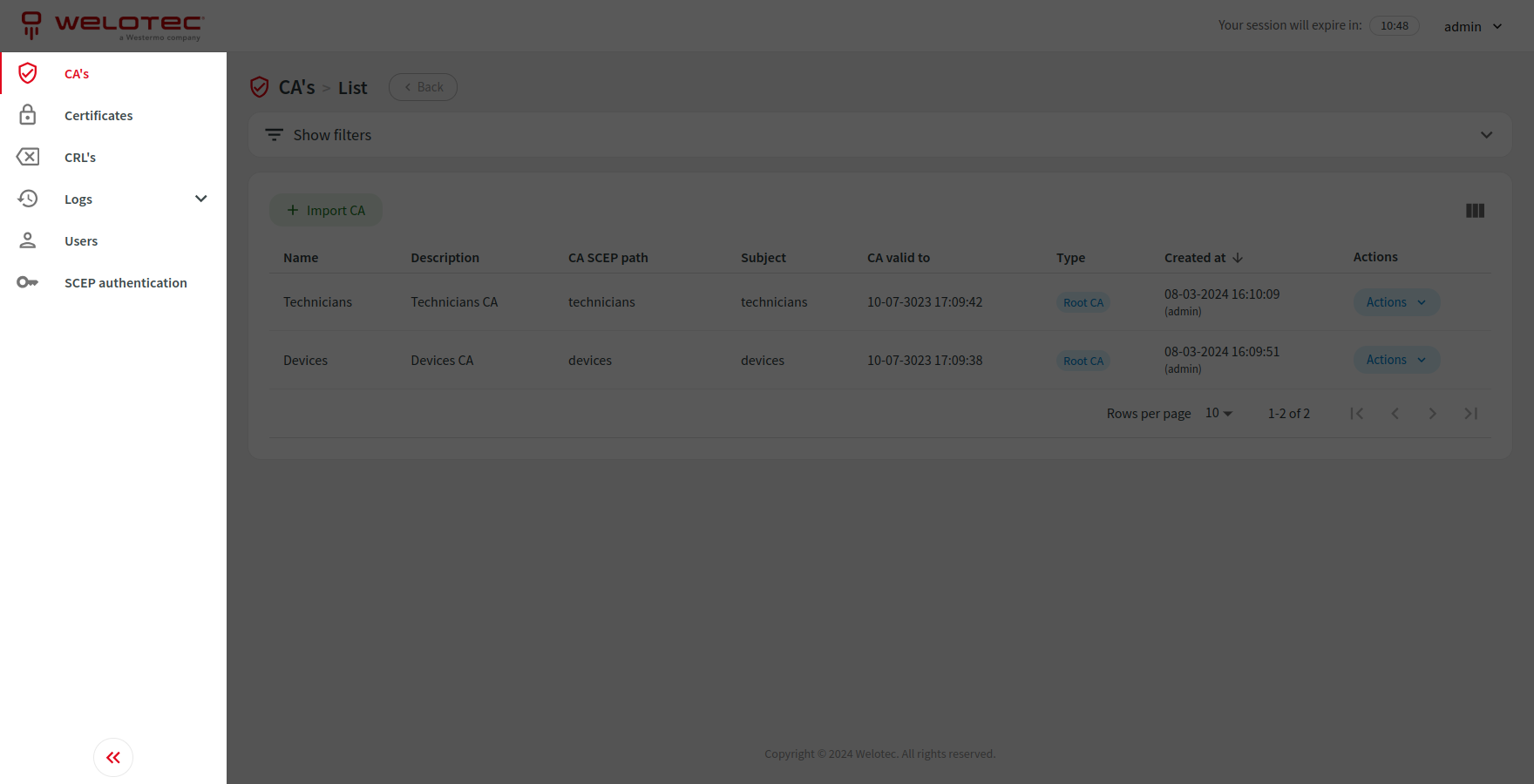
Sidebar
Sidebar is located on the left and holds an expandable menu designed to navigate through the system. Sidebar can also be collapsed to have more space for content.
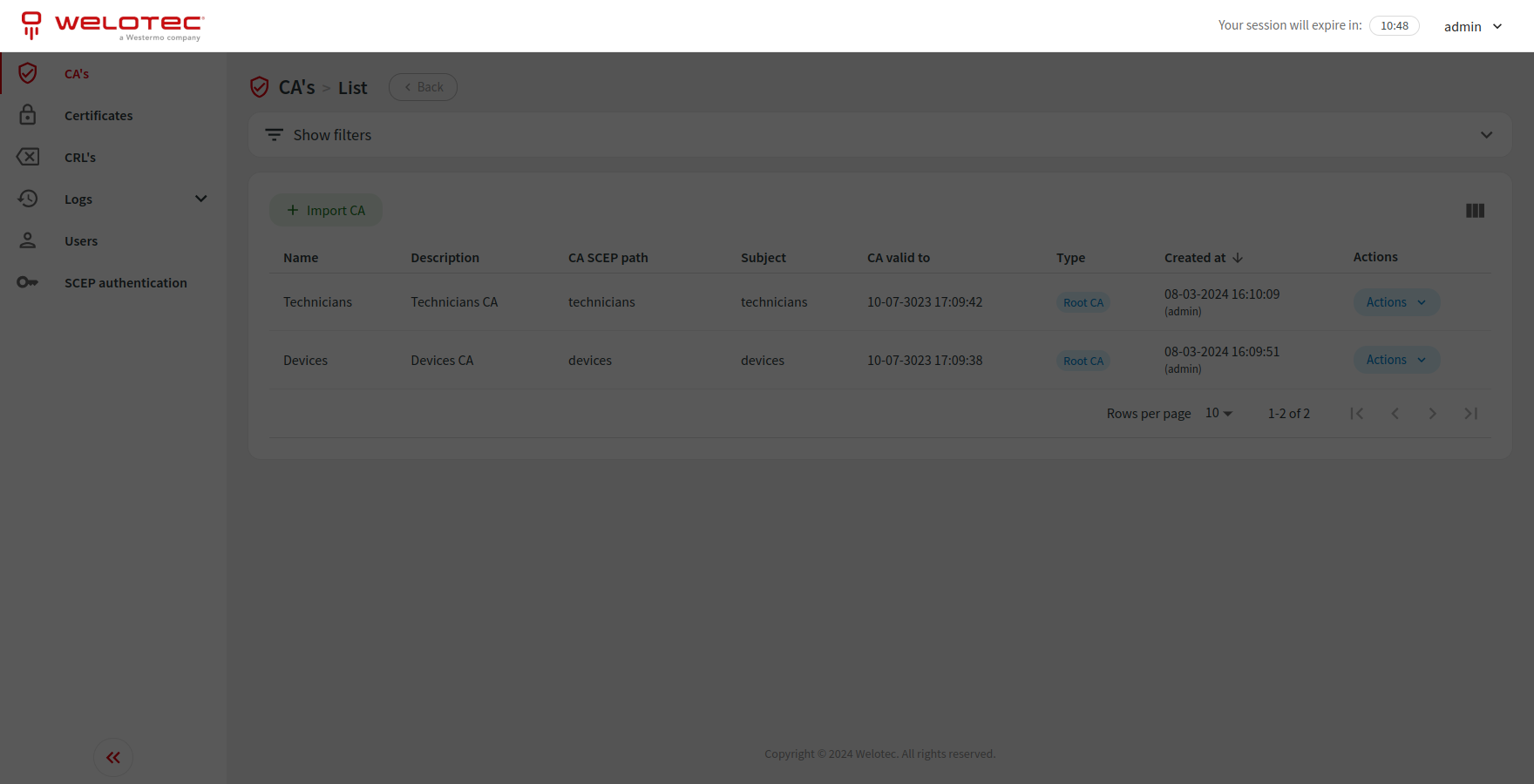
Navbar
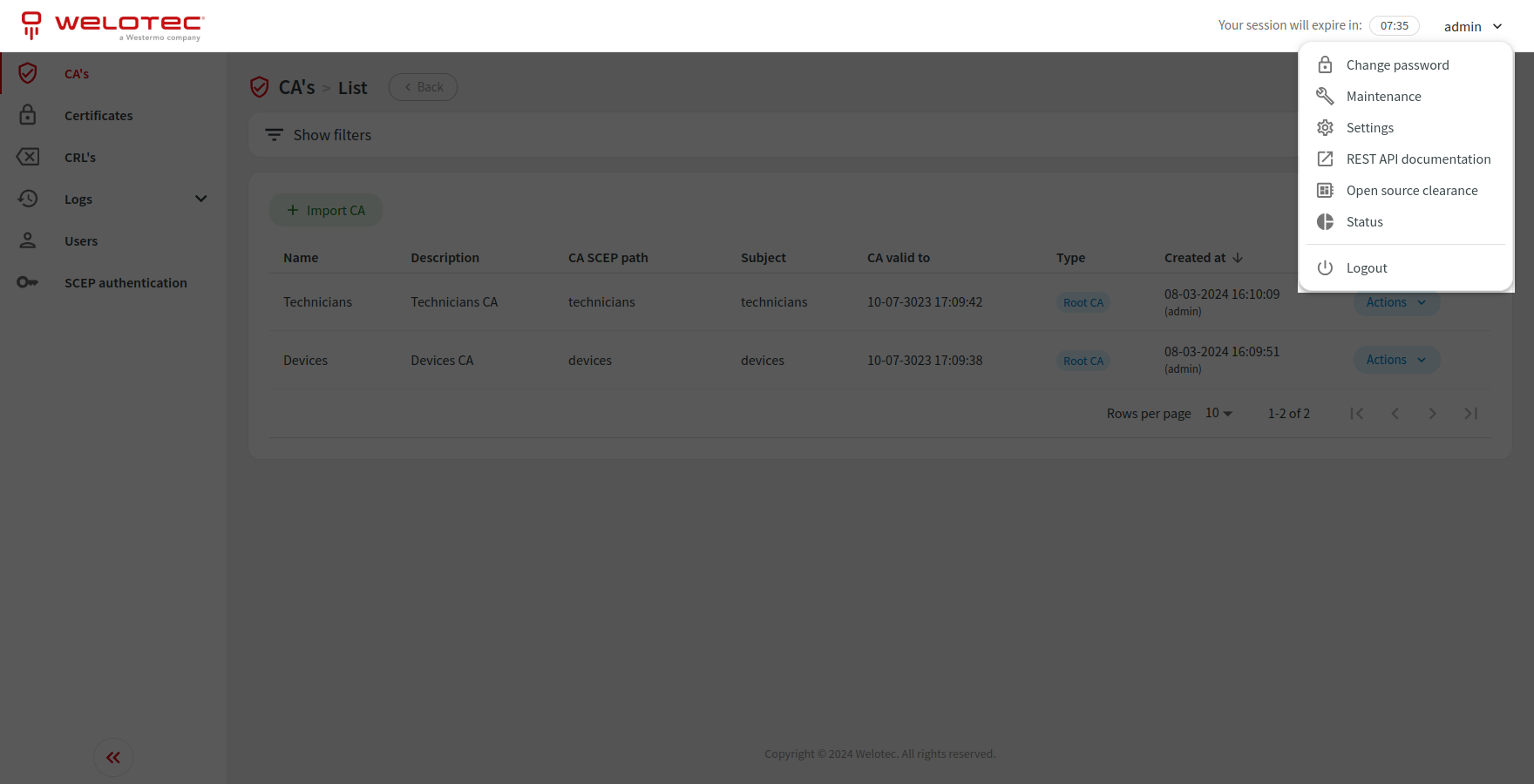
Navbar is located at the top and holds information about currently logged-in user and session expiration time.
An expandable menu with additional options is available after clicking on the username.
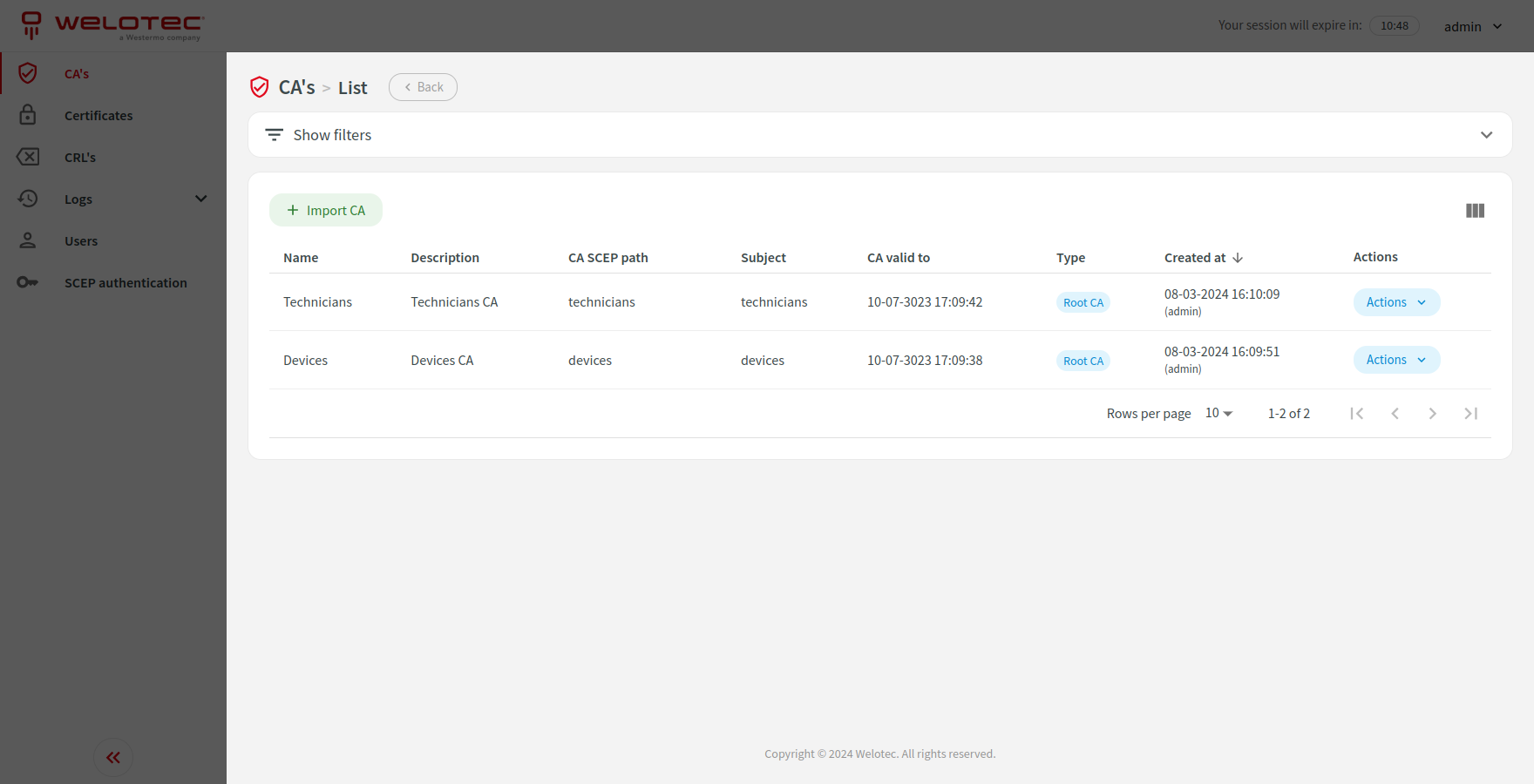
Content
General content is located in the middle and presents selected information.
List view
Inside the content area you can often find a table with columns and rows that presents a list of selected data.
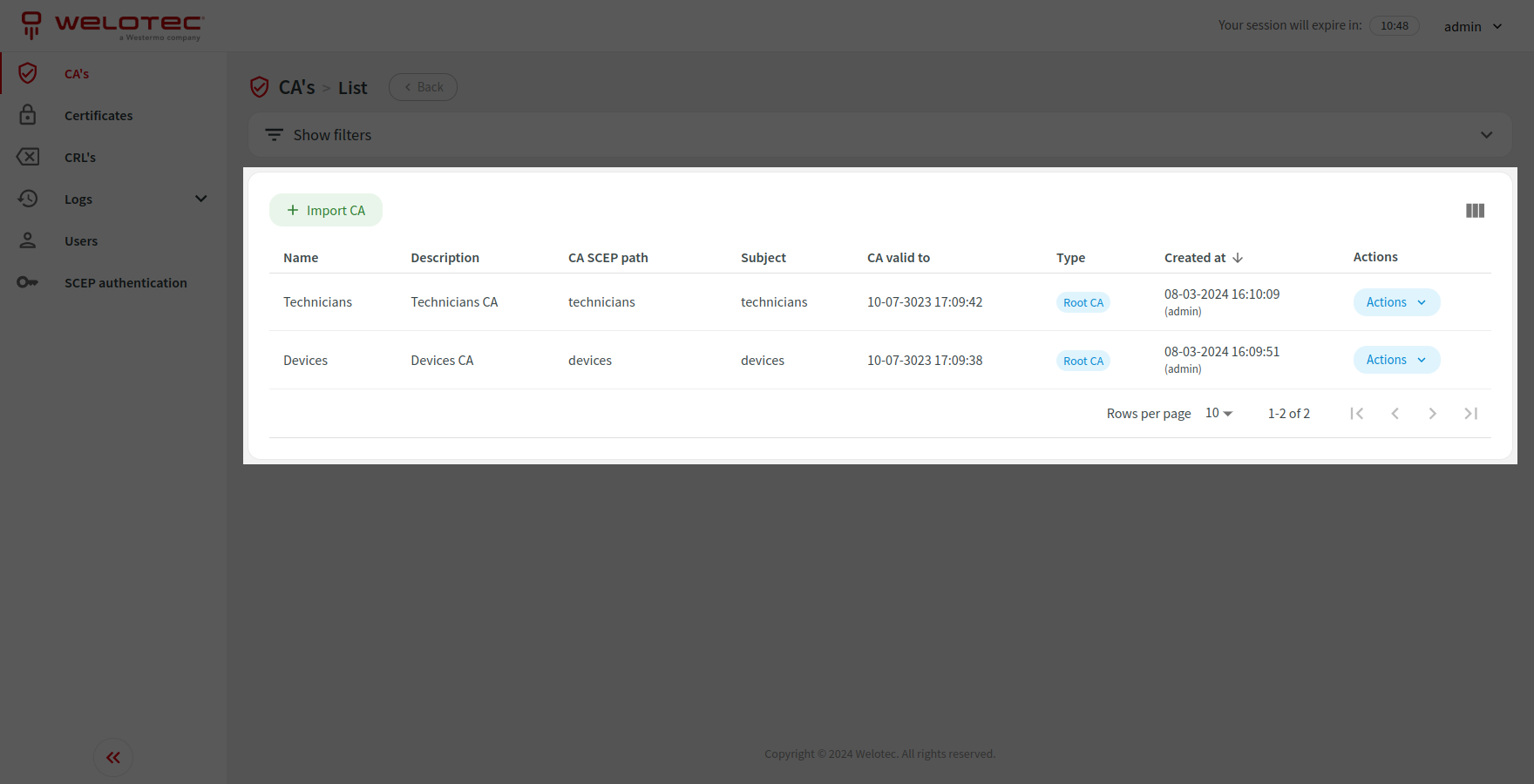
List actions
Most lists allow you to perform actions related to visible data i.e. create or export.
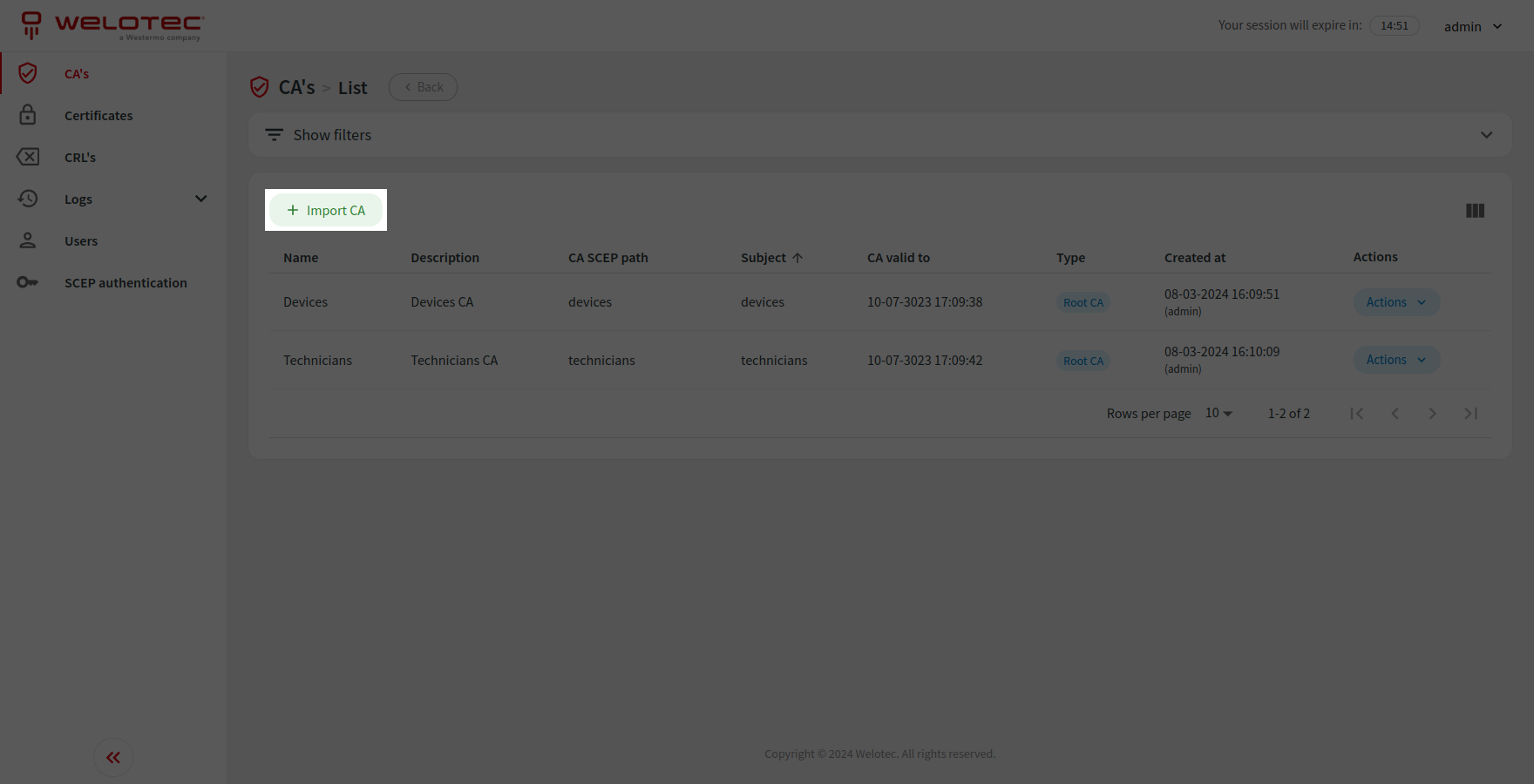
Row actions
In most cases you can also perform actions related to a specific row i.e. edit or delete. Some actions may be disabled, please hover over the disabled button to see a tooltip with detailed information.
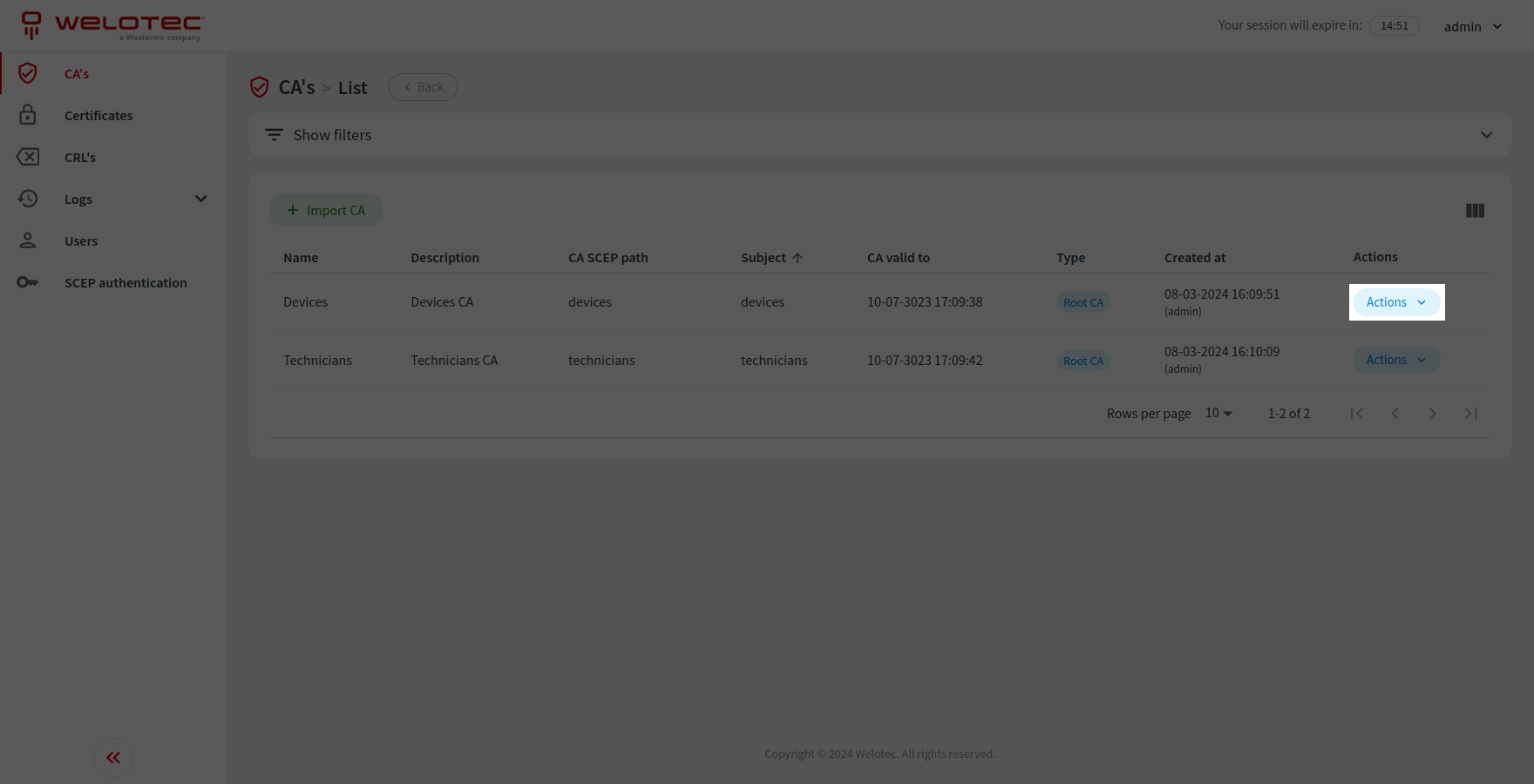
Visible columns
Lists that may have plenty of columns have the possibility to adjust them. Please click the “Adjust visible columns” button.

Visible columns dialog will be shown. It will allow you to select visible columns and adjust their order by using the drag & drop technique. Afterward please the changes by clicking the “Confirm” button. You can also reset visible columns to defaults by clicking the “Reset to defaults” button.
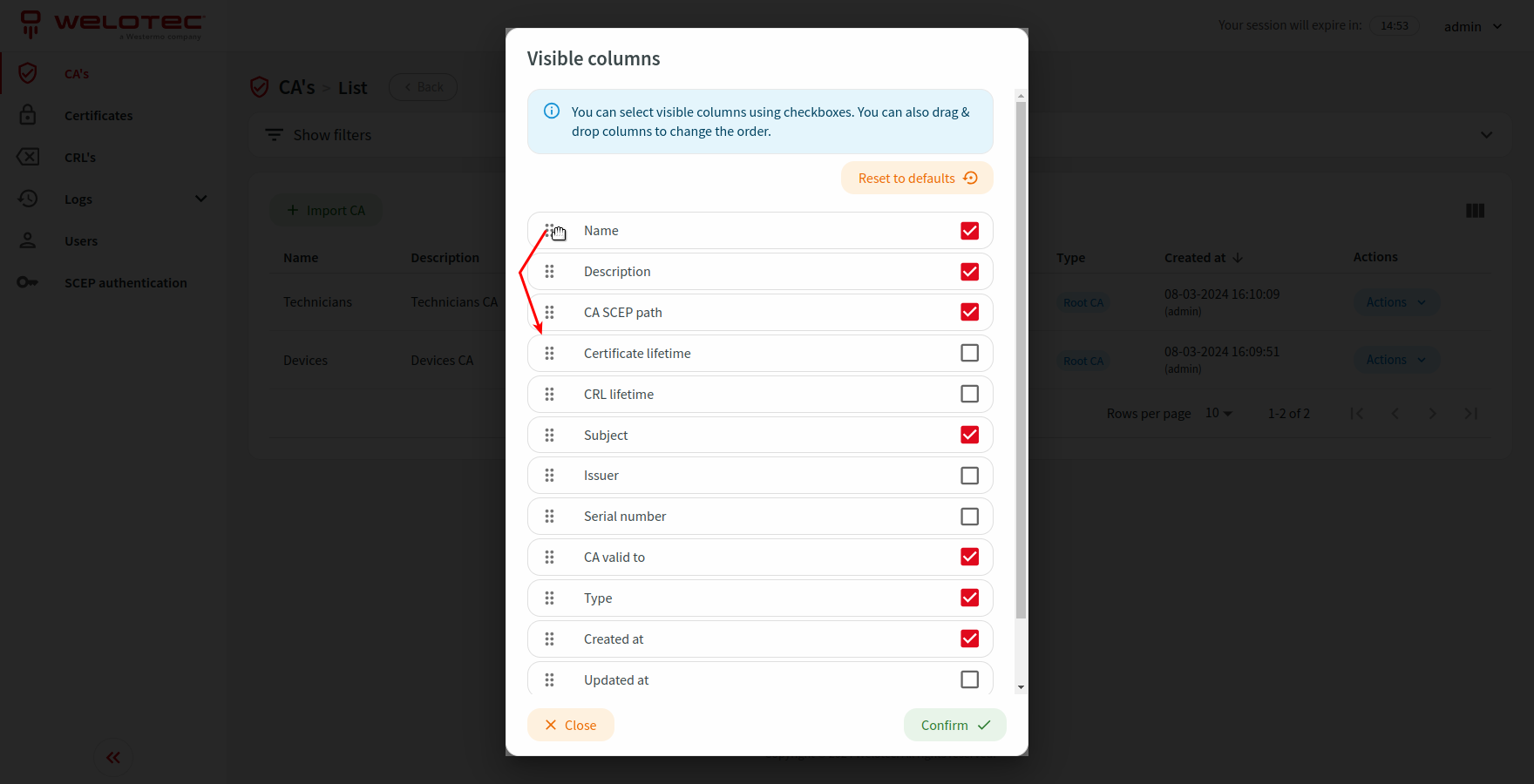
Filtering list results
Visible results on the list can be filtered according to available filters. You can find an expandable “Show filters” section.
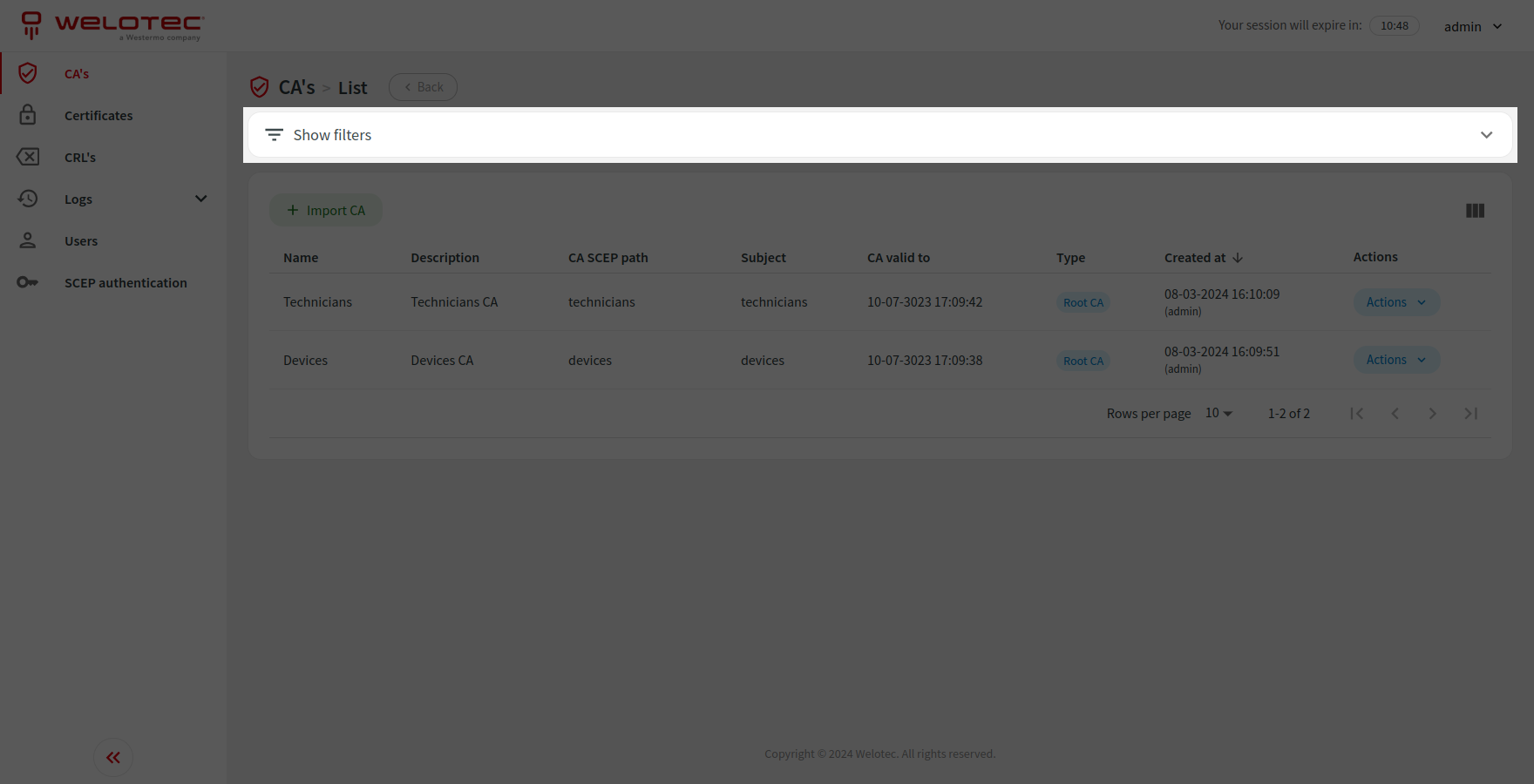
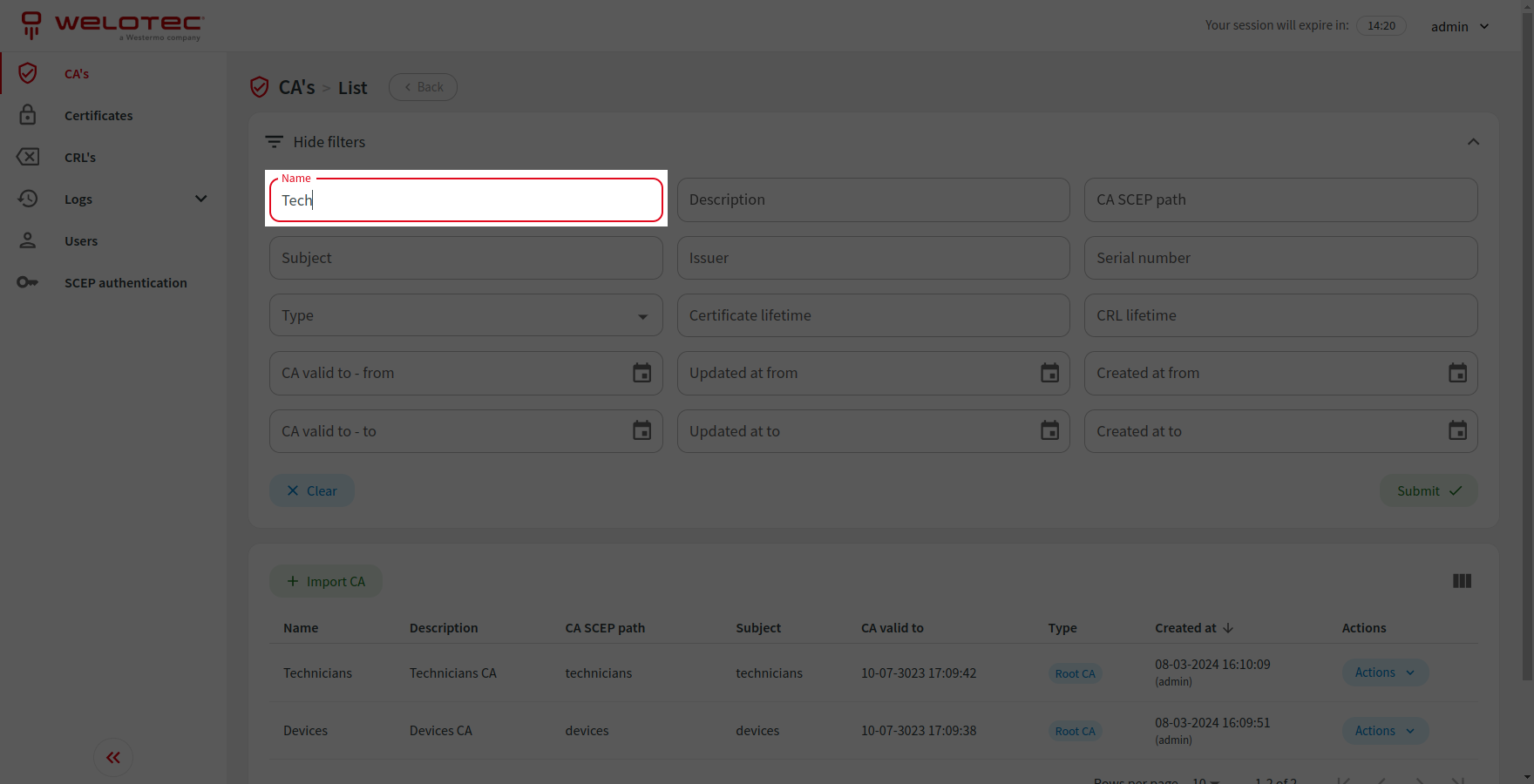
You can use a specific filter by filling in or choosing the proper value in related input and clicking “Submit”. You can also reset all filters by clicking “Clear”.
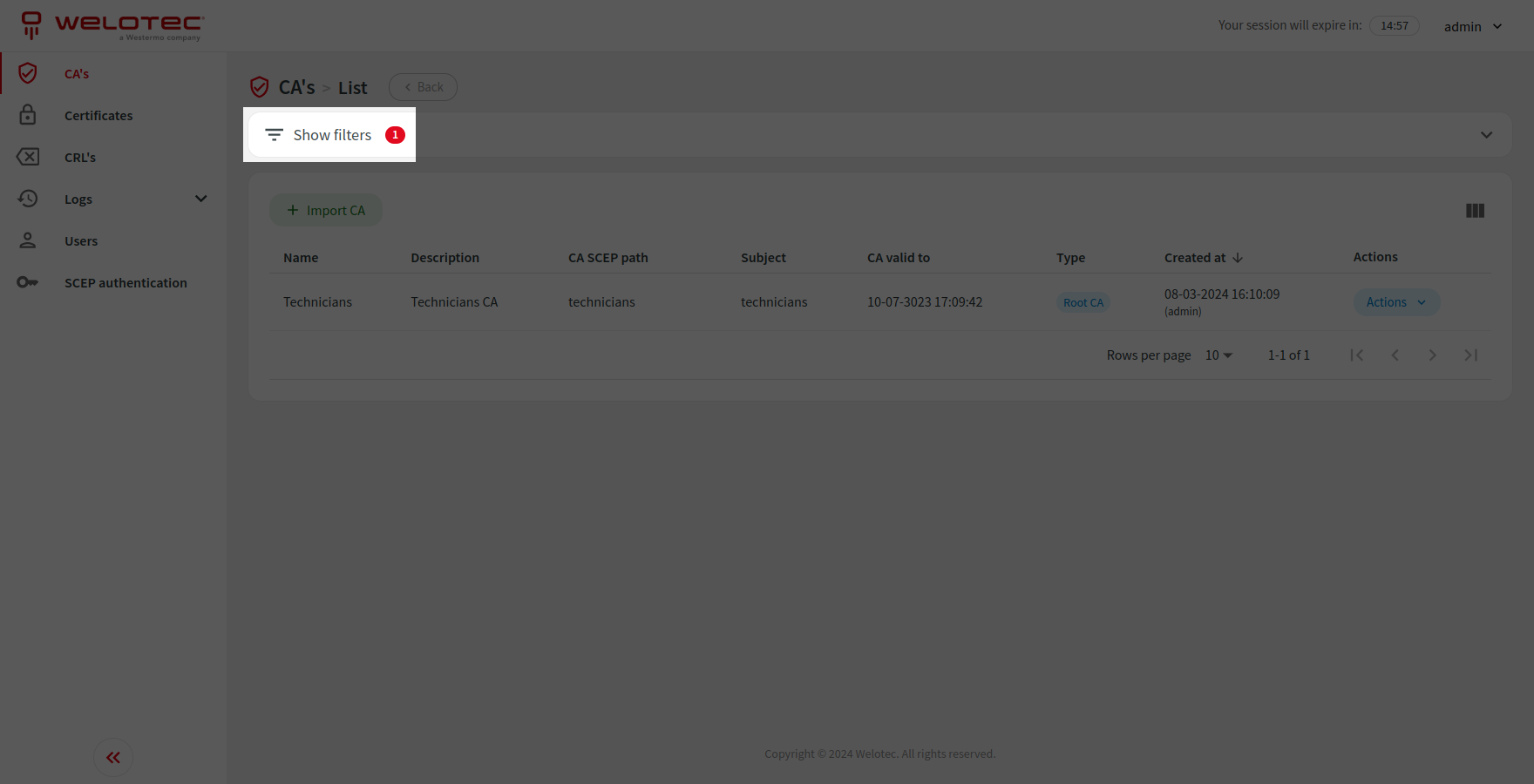
There is an additional indicator (a badge) on the “Show filters” section in case any of the available filters are currently active.
Sorting list results
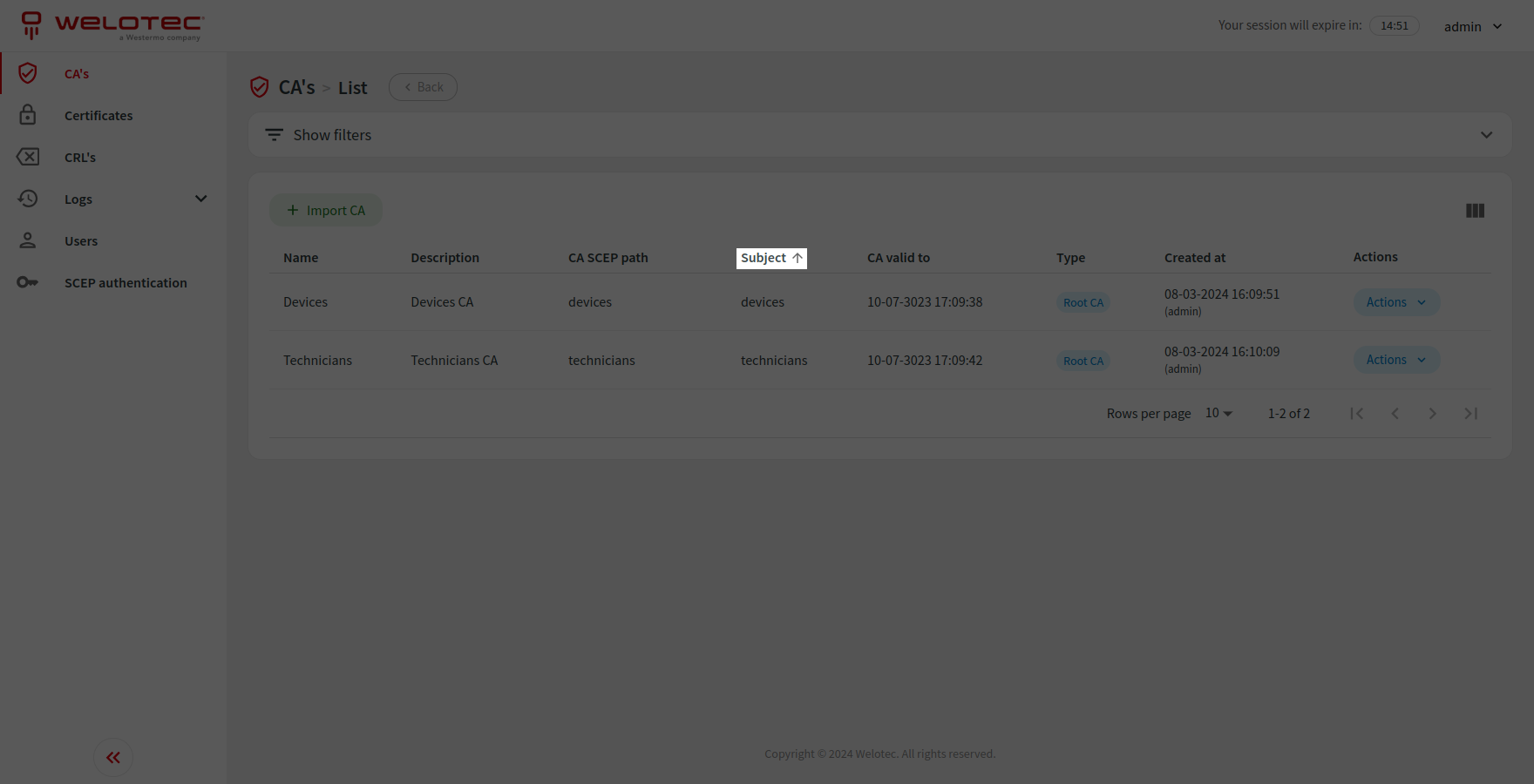
You can also sort visible results by clicking on the desired column. The second click on the same column will reverse the sorting order.
List pagination
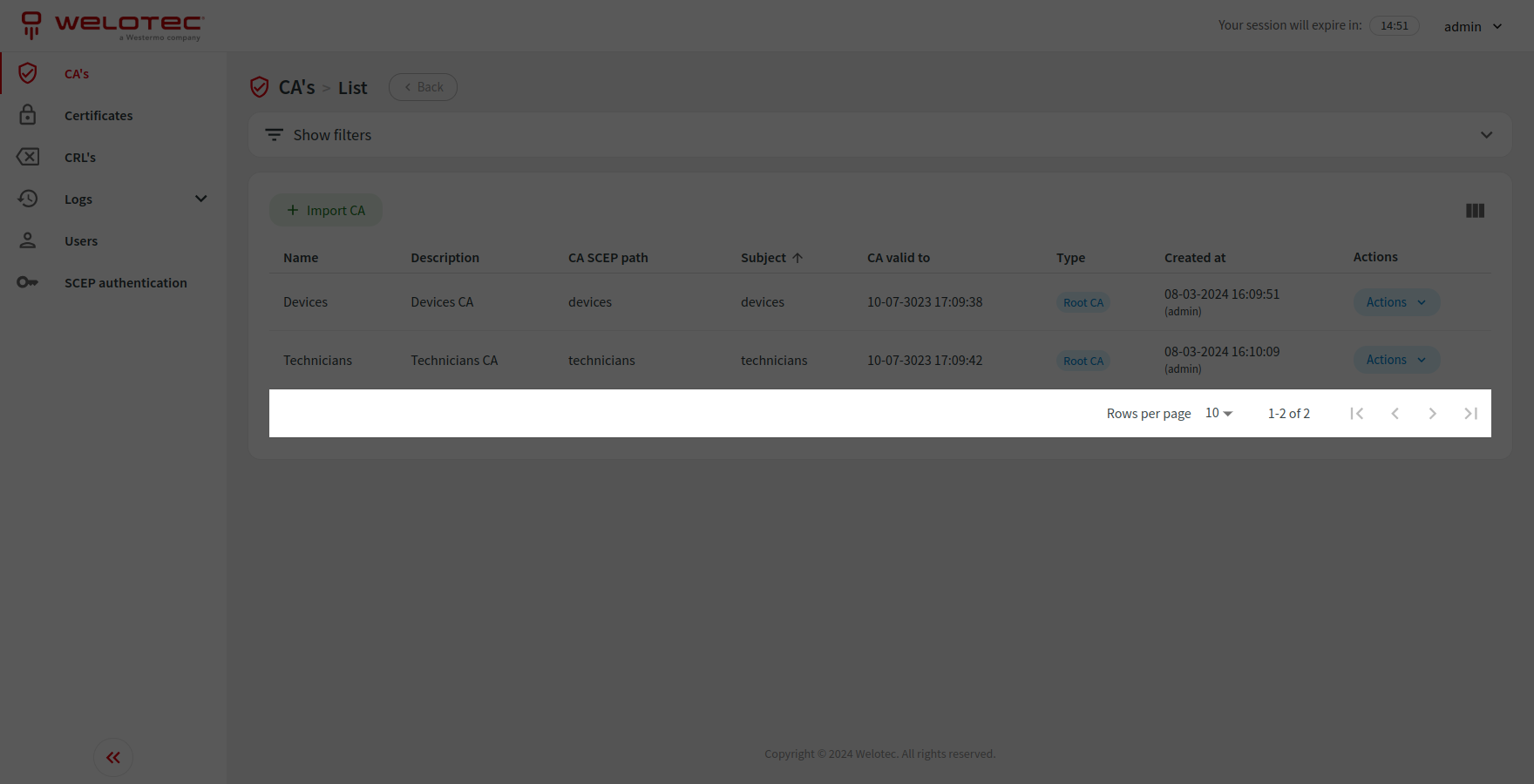
Visible results are divided into pages. You can go to a specific page by using the proper button below list results.
Forms
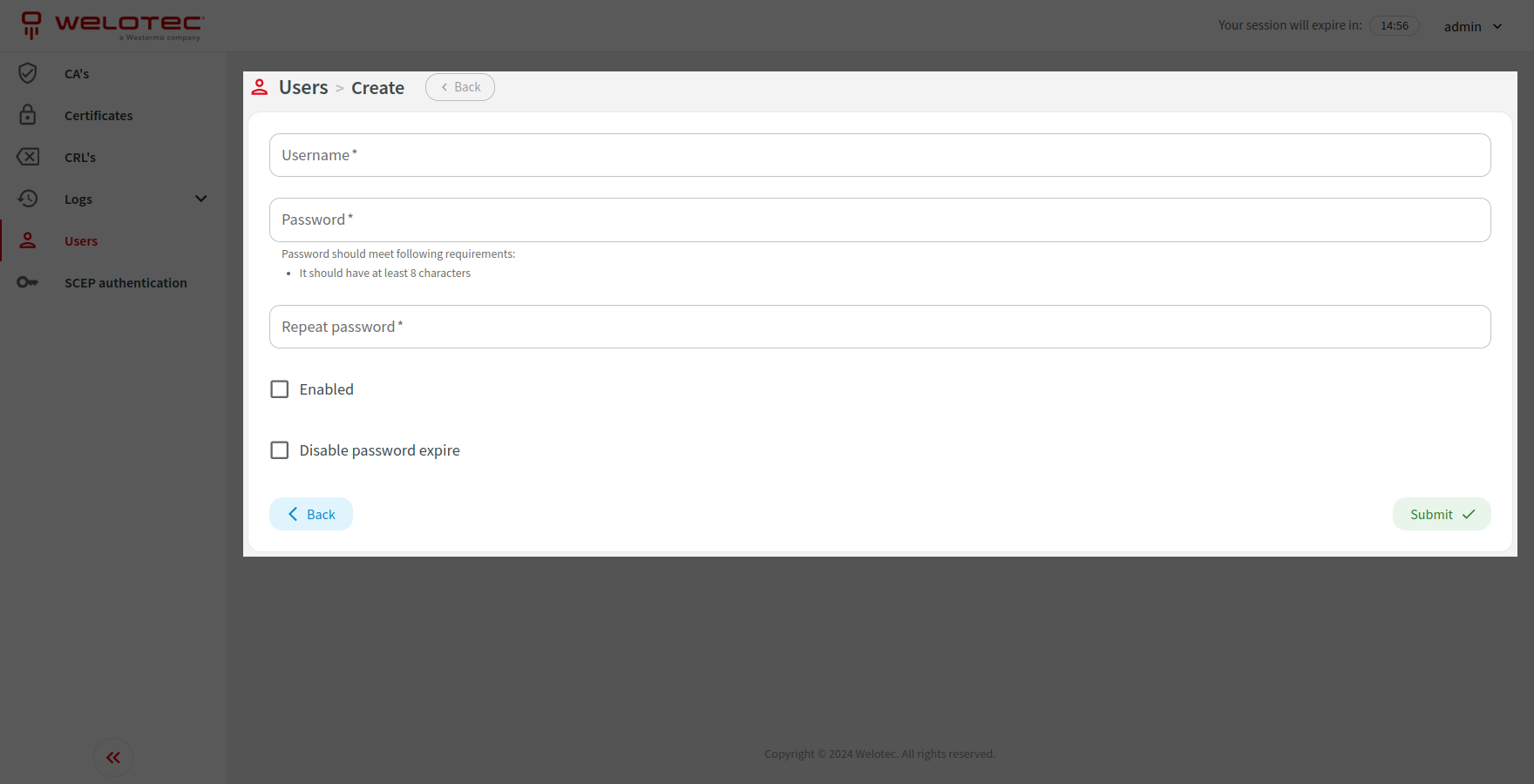
In order to input or change data you will use forms (i.e. to edit or create a device). Such a form consists of inputs that may need filling. When you edit or create information you can click “Submit” to store or update them in our system.
Dialogs
Modal dialogs appear on top of the content and move the system into a special mode requiring user interaction. This dialog disables the main content until the user explicitly interacts with the modal dialog.
An example use of such dialog is a delete action. In order to perform this action you have to confirm your decision. There are some cases in which deleting some information might lead to additional consequences, you will be informed about them on the delete confirmation screen.
